Overview
Administrators may encounter a situation where an unauthorized or unknown FortiAP, specifically model FP221E, appears in the managed Access Points list on a FortiGate. This phantom AP often shows a status of "Rejected" and can lead to High Availability (HA) synchronization issues if the FortiGate is part of a cluster.
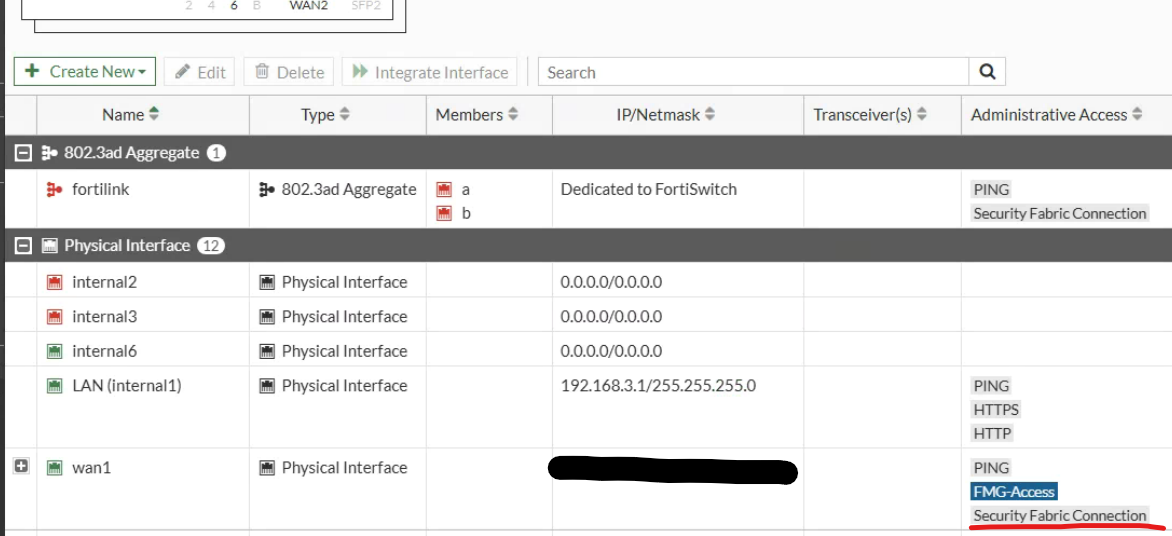
This behavior is typically caused by having the Security Fabric Connection administrative access enabled on an untrusted external interface (such as wan1 or wan2).
Symptoms
- Unknown AP in Dashboard: An entry for FP221E appears under WiFi & Switch Controller > Managed FortiAPs with a status of "Rejected"
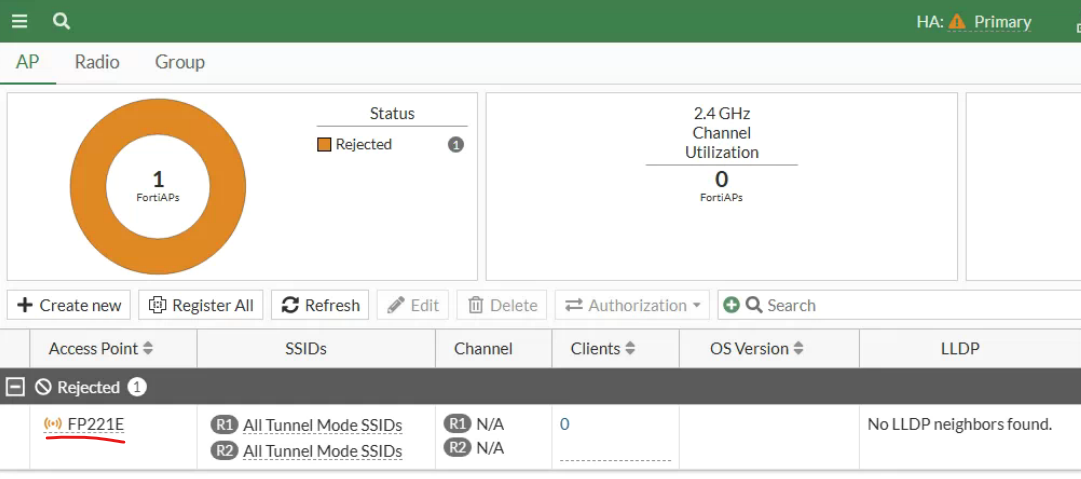
- HA Out of Sync: If the FortiGate is in an HA cluster, the "Rejected" AP object is created in the configuration of the primary unit. If it fails to sync properly to the secondary unit, the cluster will report an Out of Sync status.
- Security Fabric Connector enabled on WAN: The
waninterface has Security Fabric Connection (orfabricin CLI) enabled under Administrative Access.
Cause
The "Security Fabric Connection" setting allows the FortiGate to listen for FortiTelemetry and downstream device discovery. If this is enabled on a public-facing WAN interface, the FortiGate may receive spoofed or illegitimate discovery packets from the internet. Attackers or automated scanners may send these packets to mimic a FortiAP (often defaulting to the FP221E profile) attempting to join the fabric.
While the FortiGate correctly "Rejects" the unauthorized AP, the creation of the object itself can disrupt HA sync and clutter the management console.
Solution
To resolve this issue and prevent its recurrence, follow these steps:
1. Disable Security Fabric Connection on WAN Interfaces
You should only enable the Security Fabric Connection on trusted internal interfaces where other Fabric devices (like FortiSwitches or FortiAPs) are physically located.
Via GUI:
- Go to Network > Interfaces.
- Edit your WAN interface (e.g.,
wan1).
- Under Administrative Access, uncheck Security Fabric Connection.
- Select OK.
Via CLI:
Plaintext
config system interface edit "wan1" set allowaccess ping <-- Remove 'fabric' from this list nextend2. Delete the Rejected Access Point
Once the WAN access is disabled, you must manually remove the "Rejected" entry to restore HA sync.
- Go to WiFi & Switch Controller > Managed FortiAPs.
- Right-click the FP221E entry and select Delete.
- If the delete option is greyed out, ensure the AP is not referenced in any Managed AP Groups.
3. Verify HA Synchronization
After deleting the object, check the HA status:
- Go to the System > HA dashboard.
- Verify the status shows Synchronized. If it remains out of sync, you may need to perform a manual checksum recalculation or check the
diag sys ha checksum showoutput.
Conclusion
By limiting the Security Fabric Connection access to internal, trusted interfaces, you reduce the attack surface of the FortiGate and prevent unauthorized external devices from impacting your configuration and HA stability.