
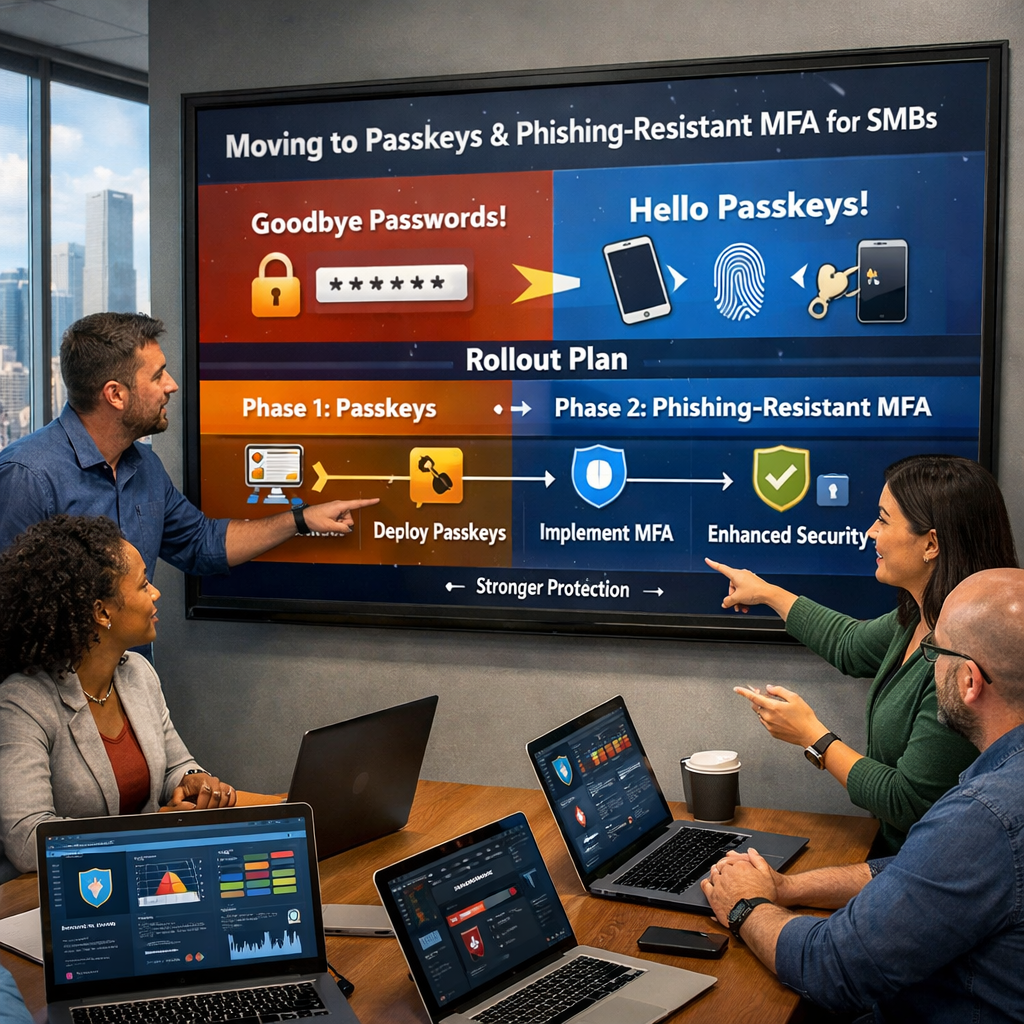
Passwords are still the easiest way into most small and mid-size environments—not because teams don’t care, but because the tools and priorities haven’t been clear. Attackers routinely steal credentials through phishing, password reuse, and MFA push fatigue, then pivot into email, admin portals, and SaaS apps. Passkeys and other phishing-resistant methods change the game by making “captured credentials” far less useful. In this guide, we’ll demystify passkeys/FIDO2, explain what to roll out first, and share a rollout approach that strengthens security without overwhelming users or the help desk.
Why passwords (& basic MFA) keep failing for SMBs
If you’re an SMB or mid-market IT leader, you already know the pattern: a user clicks a convincing link, enters credentials into a look-alike page, and suddenly you’re dealing with suspicious sign-ins, mailbox rules, and “urgent” payment requests. Even organizations with MFA enabled can still lose accounts because most “everyday” MFA methods can be tricked, bypassed, or worn down.
How attackers steal creds: phishing, reuse, spray, & MFA fatigue
Attackers don’t need to “hack” a password if they can convince a user to hand it over—or if the password is already floating around in a breached dataset. The most common credential attack paths we see include:
- Phishing kits that proxy real login pages and capture usernames, passwords, and one-time codes in real time.
- Password spraying (trying common passwords across many accounts) and credential stuffing (reusing leaked credentials).
- MFA push fatigue where users approve repeated prompts to make the prompts “stop.”
- Help desk social engineering that results in an attacker resetting MFA or initiating account recovery.
- Session/token hijacking (more on that later) that can bypass MFA entirely once a session is established.
The common thread is simple: if authentication relies on something that can be captured and replayed (a password, a code, a prompt approval), attackers will build workflows to capture and replay it at scale.
Where SMBs are most exposed: email, remote access, & admins
Most credential-based incidents in SMB environments follow a similar path:
- Entry via a user mailbox, cloud identity, or remote access portal (VPN/VDI/RDP gateways).
- Persistence via mailbox rules, OAuth app consent abuse, or additional MFA methods added by the attacker.
- Privilege escalation by targeting admin accounts, password reset flows, or misconfigured roles.
- Lateral movement into file shares, line-of-business apps, HR/finance systems, or other SaaS.
- Monetization via business email compromise (BEC), ransomware, data theft, or extortion.
The “high-value” accounts are predictable: global admins, application admins, finance leaders, executives, and anyone with access to remote admin tools. That’s why your rollout order matters. You’ll get outsized risk reduction by moving privileged and high-risk accounts to phishing-resistant methods first.
What “phishing-resistant” actually means
“Phishing-resistant” is a specific claim, not a marketing phrase. In practice, phishing-resistant authentication methods are designed so that even if a user is tricked into interacting with a fake login page, the attacker can’t capture a secret that they can reuse elsewhere.
Passkeys (based on WebAuthn/FIDO2) are phishing-resistant because they rely on public-key cryptography and origin binding. That means the credential can’t be replayed to a different site, and the “secret” (private key) never leaves the user’s device. Many security keys provide similar protections because they won’t complete an authentication ceremony for the wrong domain.
Action step: Identify your three highest-risk entry points (typically Microsoft 365/Google Workspace, remote access, and admin portals) and list the users/roles that touch them. That list becomes your Phase 1 rollout group.
Passkeys/FIDO2 in plain English
Passkeys are the most practical “passwordless” evolution in years because they can improve security and reduce user friction. But the terminology gets in the way—WebAuthn, FIDO2, authenticators, synced vs. bound, resident keys. Let’s make it simple.
Passkeys vs passwords vs OTP codes
Think of common authentication methods as answers to one question: “How do we prove you’re you?”
| Method | What the user provides | What attackers can steal | Phishing-resistant? | Best use |
|---|---|---|---|---|
| Passwords | Something you know | Password (reusable) | No | Legacy apps only (minimize) |
| OTP codes (SMS/app) | Code (time-based or SMS) | Code (often replayable in real time) | Usually no | Baseline MFA when nothing else is available |
| Push prompts | Approve/deny prompt | Approval via fatigue/social engineering | No | Use with number matching + strict policies, not alone |
| Passkeys (FIDO2/WebAuthn) | Biometric/PIN to unlock device-based key | Not a reusable secret | Yes | Modern apps and identity providers |
| Hardware security keys | Touch key + (sometimes) PIN | Not a reusable secret | Yes | Admins/high-risk users, break-glass controls |
The important difference: with passwords and many MFA codes, the user types something into a page. With passkeys, the user approves a cryptographic challenge on a trusted device, and the device proves possession of a private key without sharing it.
WebAuthn/FIDO2 basics & why phishing fails
Passkeys are built on standards:
- WebAuthn (Web Authentication) is the web standard that browsers use to talk to authenticators.
- FIDO2 is the broader set of standards that includes WebAuthn plus the client-to-authenticator protocols.
When a user registers a passkey with a site (or an identity provider like Microsoft Entra ID), the device creates a unique key pair for that site. The site stores the public key. The device keeps the private key protected by its security model (biometrics/PIN, secure enclave/TPM, etc.).
During login, the site sends a challenge. The device signs it with the private key and returns a signature. The site verifies it with the public key. A phishing site can’t “steal” the private key, and because WebAuthn is bound to the legitimate origin, a look-alike domain can’t successfully request the same credential.
Synced passkeys vs device-bound keys: tradeoffs
Passkeys often come in two practical flavors:
- Synced passkeys (cloud-synced via a platform credential manager) are easier for users because they work across a user’s devices (e.g., phone and laptop) and can be restored if a device is replaced.
- Device-bound (non-syncable) keys are typically associated with hardware security keys or device-specific credentials. They can be more controlled for admins, but require clearer lifecycle planning (spares, replacements, recovery).
For SMBs, a blended approach usually wins: use synced passkeys for broad adoption and ease of use, and use hardware security keys for admins and the most sensitive workflows.
Action step: Choose your default “user-friendly” method (often synced passkeys) and your “high-assurance” method (hardware security keys) before you write policies. Your policies should reinforce—not fight—your chosen defaults.
Phishing-resistant MFA options you can deploy today
“Passwordless” doesn’t have to mean a single method, flipped on overnight. In the real world, you’ll deploy a set of phishing-resistant options and then apply them intelligently by role, device posture, and risk. Here are the most practical options for SMB and mid-market environments.
Platform passkeys (Windows Hello, Apple, Android)
Platform passkeys use a device’s built-in security features—think Windows Hello on modern Windows devices (often backed by TPM), and passkeys stored in Apple or Android ecosystems. The benefits are significant:
- Low friction: users already unlock devices using biometrics or PINs.
- Reduced phishability: the private key never leaves the device, and auth is origin-bound.
- Fewer resets: fewer “I forgot my password” tickets once adoption is high.
- Better user acceptance: it feels modern, fast, and familiar.
The main considerations are device management and consistency. If your environment includes both managed and unmanaged devices, you’ll need Conditional Access (or equivalent) policies to ensure passkeys are used in line with your risk tolerance.
Security keys for admins & high-risk users
Hardware security keys (often called FIDO2 keys) are a strong fit for:
- Global admins and privileged roles
- IT staff who can approve access and perform resets
- Finance leaders and executives who are common BEC targets
- Users with elevated access to sensitive SaaS or critical data stores
Keys are also an excellent “hard stop” against remote phishing and MFA fatigue because the attacker can’t approve a prompt by annoying a user. The user needs the physical key (and often a PIN) to complete the login.
Practical tip: issue two keys per admin—one primary, one stored as an emergency spare—and make key registration part of your onboarding/checklist for privileged access.
Certificate/device-based & biometrics (when appropriate)
In some environments, device certificates or strong device-based signals can meaningfully reduce risk—especially when combined with conditional access. However, device-based trust is not a replacement for phishing-resistant user authentication. Instead, think of it as a multiplier:
- Compliant device + phishing-resistant sign-in is stronger than either control alone.
- Risk-based policies can step up requirements only when needed (new device, risky sign-in, unfamiliar location).
- Legacy constraints (older apps) may require transitional controls until modernization is complete.
Action step: Create a short “authentication standards” chart for your org: which roles require security keys, which roles can use platform passkeys, and which legacy apps require transitional MFA methods—and for how long.
Readiness checklist before you flip the switch
Most passwordless initiatives fail for one of two reasons: (1) the technology is turned on before the prerequisites are ready, or (2) the rollout is treated like a policy change instead of a user experience change. Use this readiness checklist to avoid the most common breakpoints.
Identity provider support (Entra ID/Okta/etc.)
Your identity provider is the control plane for passwordless authentication. Before you start:
- Confirm passkey/FIDO2 support for your tenant and licensing level.
- Standardize authentication methods (remove weak options where possible; define approved methods).
- Review conditional access capabilities (device compliance, location, risk signals, app-specific policies).
- Document break-glass/admin recovery flows that do not rely on easily-phished methods.
If you’re a Microsoft 365 organization, plan to align passkey rollout with Microsoft Entra ID authentication method policies and Conditional Access. If you use Okta or another IdP, map equivalent controls and confirm your application integration patterns.
Device & browser compatibility
Passkeys depend on modern OS and browser support. Compatibility questions that matter:
- Are user devices on supported OS versions (Windows, macOS, iOS, Android)?
- Do you have a standard browser baseline (Edge/Chrome/Safari) and update policy?
- Are users signing in from managed devices, BYOD, or a mix?
- Do remote/VDI workflows change how passkeys are presented and used?
If device management is inconsistent, don’t stall the whole program—just define where stronger policies apply first (admins, high-risk apps, managed endpoints) and progressively expand.
Legacy apps & protocols that will break
The number one technical reason passwordless rollouts stumble is legacy authentication. Examples include older email clients, basic authentication protocols, legacy VPN portals, and apps that don’t support modern auth.
Your goal is to identify these before you force enforcement. For each legacy dependency:
- Determine the owner (business unit, vendor, internal app team).
- Assess replacement options (upgrade, modern auth integration, SSO enablement).
- Apply compensating controls temporarily (restricted access, strict conditional access, monitoring, segmentation).
- Set a sunset date so exceptions don’t become permanent.
Action step: Run a 2-week “auth dependency discovery” sprint: export sign-in logs, identify legacy protocols/apps, and categorize them into (A) ready now, (B) needs change, (C) replacement required.
What to roll out first: a practical rollout order
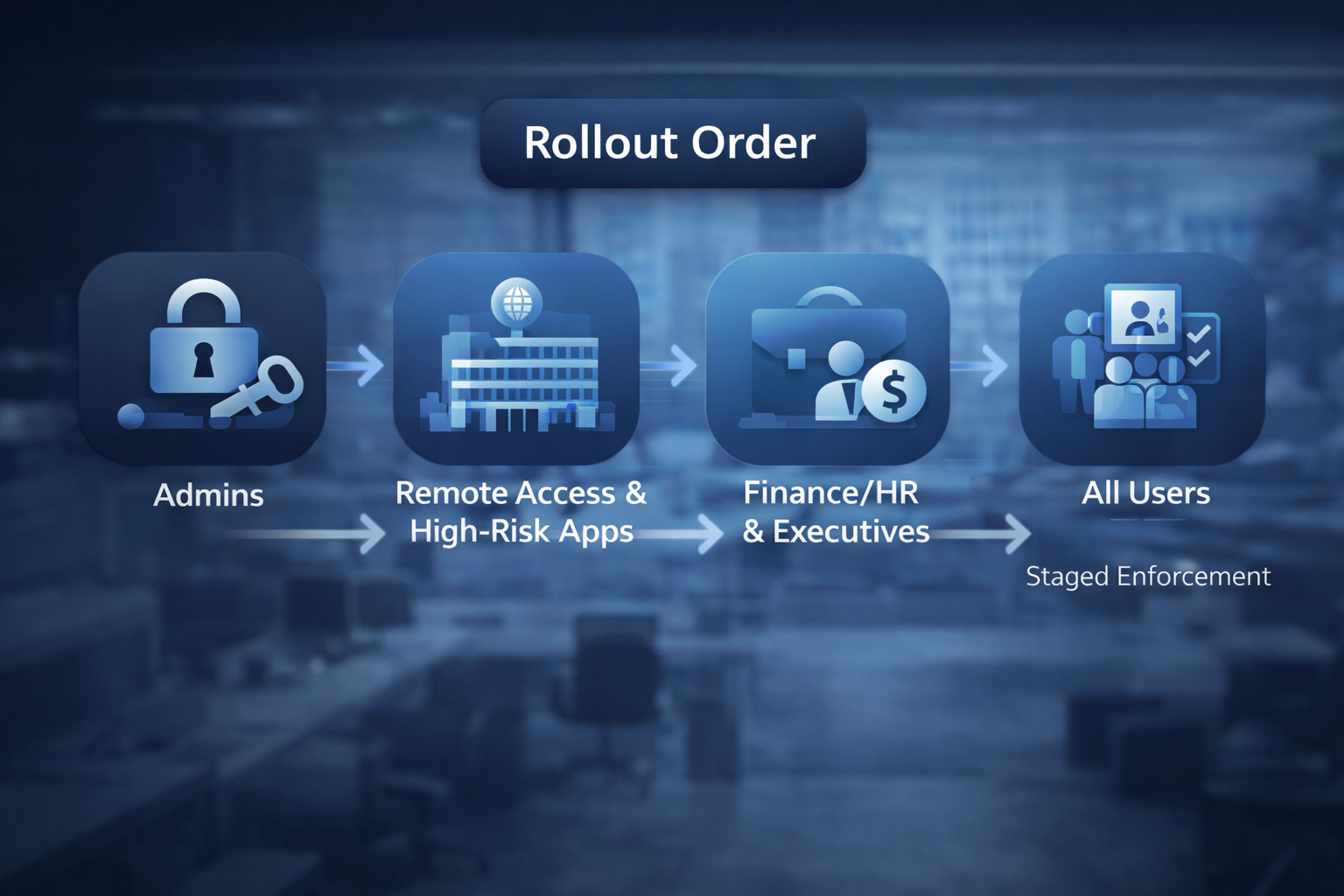
The fastest path to reducing credential theft is not “turn on passkeys for everyone.” It’s rolling out phishing-resistant authentication in the order that removes the highest-impact attack paths first. Here’s the rollout order we recommend for most SMB and mid-market organizations.
1) Admin & privileged accounts
Start with the accounts that can change everything: global admins, privileged role holders, and IT staff who can reset passwords, approve access, or modify authentication methods. For this group:
- Require phishing-resistant MFA (preferably hardware security keys).
- Enforce separate admin accounts (no daily driver admin use).
- Require managed devices for access to the admin portal.
- Restrict admin access by location and device compliance (where feasible).
- Implement just-in-time (JIT) privilege elevation if available (reduce standing privilege).
This phase alone can materially reduce the likelihood that an initial compromise turns into a full tenant takeover.
2) Remote access / VPN / VDI / critical SaaS
Next, move the doors attackers actually use to enter: remote access portals, VPN/VDI, and your most critical SaaS apps. Ideally, these are fronted by your identity provider with modern auth and conditional access.
If some remote access systems can’t support passkeys immediately, don’t accept that as “good enough” forever. Use compensating controls (strict access policies, segmentation, logging, and monitoring) and plan modernization.
3) Finance/HR & executives
Finance and HR are high-value targets for BEC and fraud. Executives are frequently targeted because their accounts have “approval” power. For these groups:
- Prioritize phishing-resistant sign-in for email and collaboration tools.
- Review inbox rules, forwarding, and OAuth app consent permissions.
- Enable step-up requirements for high-risk actions (new payee, external forwarding, admin consent requests).
4) Everyone else (with staged enforcement)
Once the high-risk groups are stable and you’ve learned from real user behavior, expand to the rest of the org using stages:
- Registration campaign (users enroll passkeys with clear instructions and support).
- Optional use (users can choose passkeys, but a password fallback is available).
- Preferred use (passkeys are encouraged and made the default, where possible).
- Enforced use (passwordless required for defined apps/contexts; exceptions are time-limited).
Action step: Define your Phase 1 group (admins), Phase 2 group (remote access + critical SaaS), Phase 3 group (finance/HR/executives), and a timeline for broad rollout. Put dates on each phase—even if they shift—so the program keeps moving.
Policy design: make the secure path the easy path
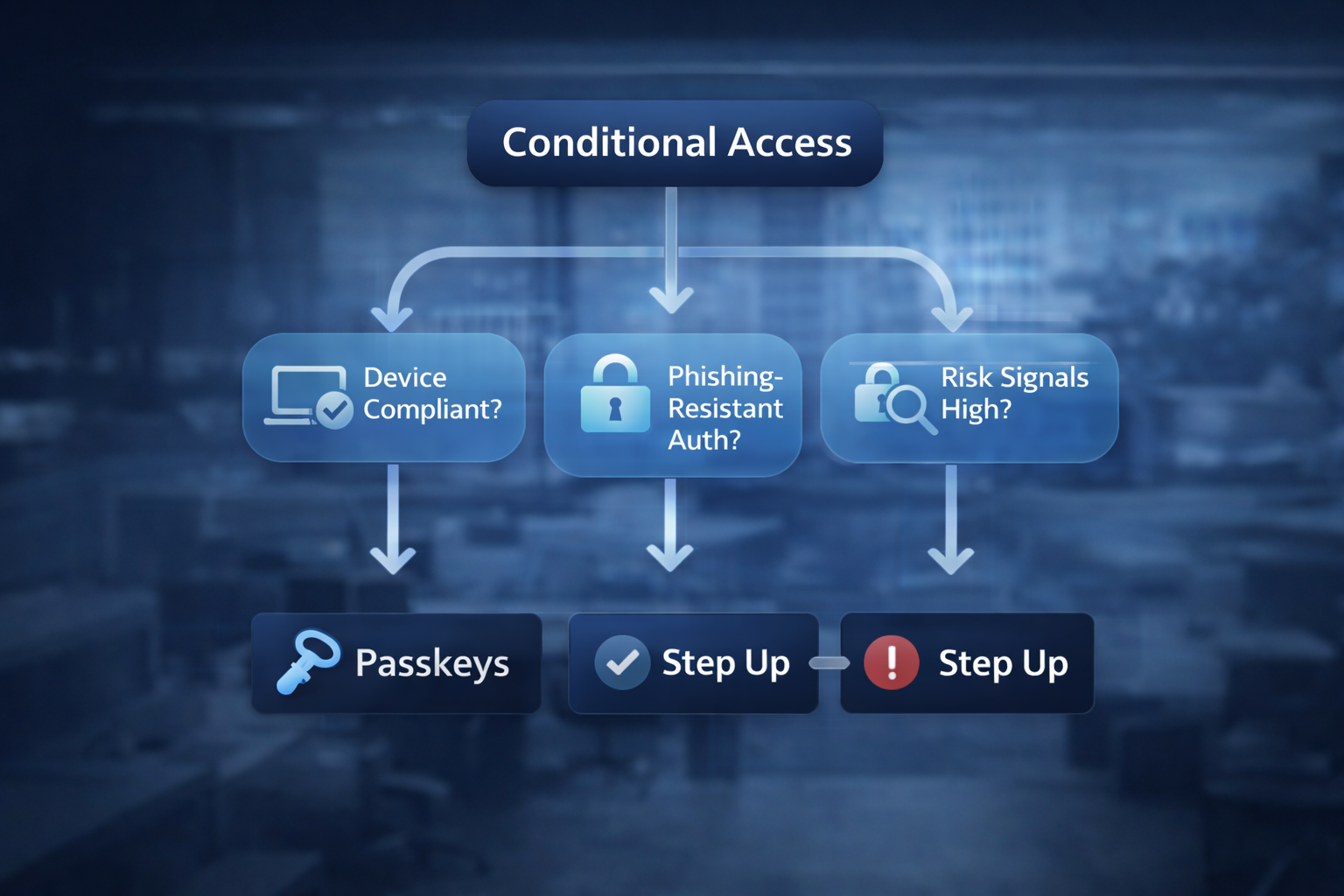
A passwordless initiative is a policy initiative, but it should feel like a usability upgrade to end users. The most successful programs create policies that guide users to the safest path by default—without surprises.
Conditional access: require compliant device + strong auth
Conditional Access (or equivalent controls) lets you apply “stronger requirements” only where they matter most. A pragmatic approach:
- Admins: require managed device + phishing-resistant MFA; restrict access to admin portals.
- High-risk apps: require phishing-resistant MFA for sign-in and re-auth.
- External access: step up requirements for new locations, unfamiliar devices, or risky sign-ins.
- Legacy exceptions: isolate with narrow scopes and explicit expiration dates.
Be careful with policies that are “too clever.” Complexity can create gaps and help desk headaches. Fewer well-documented policies with clear testing are better than dozens of overlapping conditions.
Registration campaigns, grace periods, & exclusions
Adoption matters. Users need time and clear prompts. A good campaign includes:
- Lead time: “Here’s what’s changing and why” at least 2 weeks in advance.
- Simple enrollment: a short guide, screenshots, and a 2-minute video if possible.
- Grace period: allow users to enroll before enforcement begins.
- Office hours: set times for live help to reduce ticket backlog.
- Targeted outreach: follow up with users who haven’t enrolled before enforcement.
Exclusions should be rare and visible. If you must exclude a user or app, require documentation: who approved it, why it’s needed, and when it will be removed.
Account recovery that doesn’t reintroduce risk
Recovery is where security often collapses. If an attacker can “recover” an account with a help desk call, your passwordless effort can be undone. Strengthen recovery by:
- Requiring strong identity verification for resets (especially for privileged accounts).
- Providing secure backup methods (e.g., spare security key, managed device flows).
- Limiting who can perform sensitive resets and adding auditing and approvals.
- Using temporary access passes or time-limited recovery methods where available, with strict controls.
Action step: Write a one-page “Passwordless Policy” that includes: approved methods, required methods by role, exceptions process, and the recovery workflow for standard users vs. privileged users.
User comms + training that reduce help desk tickets
Your users don’t need a cryptography lesson. They need to know what’s changing, why it matters, and how to succeed without getting stuck. When communication is clear, tickets drop dramatically.
“What will change” message templates
Use a short, direct message. Here’s a template you can adapt:
Subject: A faster, safer sign-in is coming (passkeys)
Over the next few weeks, we’re rolling out passkeys—a simpler way to sign in that reduces phishing risk. Passkeys replace passwords with a secure sign-in using your device (Face ID/Touch ID/Windows Hello or a security key). You’ll get a prompt to set up your passkey. Setup takes about 2 minutes.
When: Enrollment opens on [date]. Enforcement begins for [group/app] on [date].
What you need: Your laptop and/or phone, and 2 minutes to complete setup.
Help: Visit [internal link] or join office hours [dates/times].
How to handle new device enrollment
Device lifecycle is normal: new laptops, phone upgrades, replacements. Plan for it:
- Encourage two methods for users where appropriate (e.g., passkey + backup method).
- Document the “new device” path in plain language: what users do, what IT does, and expected timing.
- Standardize enrollment during onboarding and device refresh cycles.
- Make recovery secure and predictable (avoid ad hoc exceptions).
Phishing-resistant habits & reporting
Passkeys reduce one category of risk, but they don’t eliminate social engineering. Train users to:
- Report suspicious emails and sign-in prompts immediately.
- Pause before approving any “unexpected” auth action.
- Watch for “consent” prompts to new apps and report them if unexpected.
- Use official bookmarks or trusted portals to access key apps.
Action step: Create a single internal page titled “Passkeys: Setup, New Device, and Help” and include it in every comms message. Repetition reduces tickets.
How to measure success & catch gaps
If you can’t measure it, you can’t manage it. Measuring a passwordless rollout is not just about adoption; it’s about understanding where users fall back to weaker methods and where attackers still try to get in.
Auth method adoption & fallback rates
The core metrics to track:
- Passkey registration rate: % of targeted users enrolled.
- Passkey usage rate: % of sign-ins using passkeys vs. passwords/other methods.
- Fallback triggers: why users reverted (device incompatibility, app limitations, confusion).
- Help desk volume: tickets per 100 users during rollout.
Fallback is not failure—fallback is feedback. If a specific app or workflow forces fallback, that’s your next modernization target.
Admin sign-ins & risky sign-in trends
Privileged sign-in telemetry is an early warning system. Monitor:
- Admin sign-ins from non-compliant devices
- Admin sign-ins from new countries or unusual locations
- Repeated sign-in failures for privileged accounts
- New MFA methods added to privileged accounts
If you’re using identity protection/risk signals, track how often risky sign-ins occur and how often policies successfully block or step up authentication.
Top blocked attempts & lessons learned
A successful rollout should show a measurable increase in:
- Blocked sign-ins from suspicious sources
- Denied access due to device non-compliance (where enforced)
- Reduced password-based sign-ins to critical apps
Pair these metrics with a quarterly review: which apps still allow password sign-in, which users remain on exceptions, and where you can tighten controls without breaking workflows.
Action step: Schedule a 30-day and 90-day “Passwordless Health Check” to review adoption, exceptions, and risky sign-ins—then update your rollout plan accordingly.
Common pitfalls & how to avoid them
Most passwordless programs stumble in predictable ways. The good news: these pitfalls are avoidable if you plan for them up front.
Shared accounts & break-glass access
Shared accounts are dangerous because you can’t reliably attribute actions to a person, and they’re often protected with weak or reused credentials. Replace shared accounts with named accounts and role-based access wherever possible.
You will still need break-glass access—just do it deliberately:
- Create two break-glass accounts with long, unique credentials and store them in a secure vault.
- Restrict their use and monitor sign-ins aggressively.
- Do not use them for daily administration; they exist for outages and emergency recovery only.
- Test the process quarterly so it works when you need it.
Over-permissive exceptions
Exceptions are where attackers live. If an app or user is excluded from strong authentication indefinitely, your defenses have a permanent hole. Fix this by:
- Requiring business justification and security review for exceptions.
- Applying the minimum scope necessary (specific app, specific user group, specific condition).
- Setting an expiration date and assigning an owner who must remove it or renew it with justification.
- Monitoring exception usage and alerting on suspicious behavior.
Ignoring SaaS apps outside SSO
Many SMBs secure Microsoft 365 (or Google) but forget the dozens of other SaaS apps where passwords still rule. Attackers know this, and they’ll pivot to weaker apps to regain access or steal data.
To avoid this:
- Inventory SaaS apps and prioritize those with sensitive data or financial workflows.
- Bring apps under SSO where possible.
- Require phishing-resistant auth for high-risk SaaS sign-ins.
- Monitor OAuth/app consents and suspicious access patterns.
Action step: Build a “Top 20 SaaS” list and score each app on sensitivity and authentication strength. Tackle the highest-risk apps first by enabling SSO and stronger authentication.
Putting it all together: a 30-day passwordless rollout plan for SMB
If you want a simple starting point, here’s a practical 30-day plan you can adapt. The goal is to create momentum, reduce high-impact risk quickly, and avoid a drawn-out rollout that loses urgency.
Days 1–7: Assess and prepare
- Identify Phase 1 users: admins and privileged roles.
- Review sign-in logs for legacy protocols and risky sign-in patterns.
- Confirm device readiness and standardize browser baselines.
- Draft policies: approved auth methods, conditional access approach, recovery workflows.
- Prepare a communication plan and an internal setup page.
Days 8–14: Pilot with admins
- Enroll admins with hardware security keys (and spares).
- Enforce phishing-resistant auth for admin portals and privileged actions.
- Test recovery workflows and document the “what if” scenarios.
- Refine policies based on real admin experience.
Days 15–21: Expand to remote access & critical SaaS
- Apply stronger policies to VPN/VDI/remote access or front them with SSO where possible.
- Enable passkeys for critical SaaS applications under your IdP.
- Begin a registration campaign for the next targeted group (finance/HR/executives).
Days 22–30: Targeted business groups & staged broader adoption
- Enroll finance/HR/executives; tighten protections for email and high-risk workflows.
- Launch staged adoption for the wider user base: register → optional → preferred.
- Measure adoption and help desk volume; adjust communications and training.
- Document exceptions and set expiration dates.
After day 30, the job shifts from “rollout” to “optimization”—driving down password usage, reducing exceptions, modernizing legacy apps, and continuously monitoring risky sign-ins.
Trust Cyberadvisors, we've helped many organizations just like yours
Cyber Advisors helps SMB and mid-market teams take the guesswork out of going passwordless—starting with a clear assessment of your current password policies, MFA methods, sign-in logs, and “high-risk” access paths (email, admin portals, remote access, and critical SaaS). We translate those findings into a practical rollout plan—phishing-resistant authentication for admins first, staged adoption for users, and Conditional Access policies that make the secure path the easiest path—so you reduce credential theft quickly without disrupting day-to-day work.
Next steps: book a 30-minute Passwordless Readiness Review
Passwordless doesn’t have to be disruptive. With the right rollout order, strong policies, and clear user communication, SMBs can quickly reduce credential theft—without drowning the help desk or disrupting business workflows. If you want a fast, practical plan tailored to your environment, we can help.